
Radio
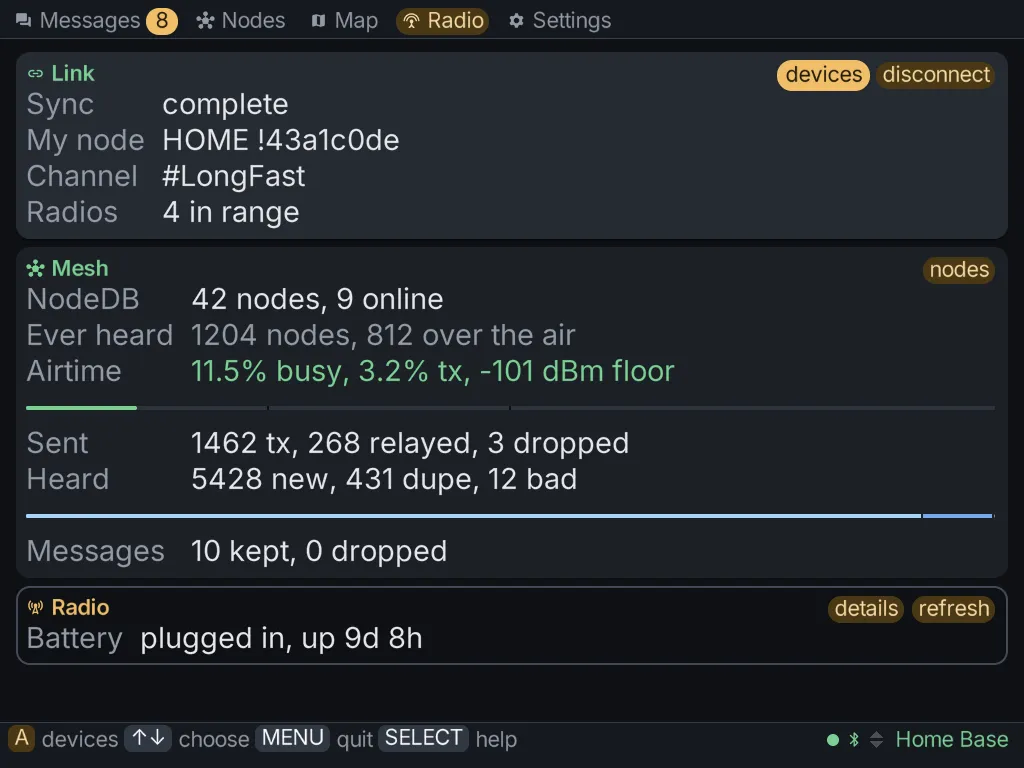
The Radio tab is the dashboard for the radio you’re holding. It opens on three cards, and each card has a button that leads to a page.
| Card | About | Its button opens |
|---|---|---|
| Link | the connection between the client and the radio | devices, the device list |
| Mesh | the mesh the radio can hear | nodes, the node lists |
| Radio | the radio itself | details, the radio’s details and actions |
A fourth card, Broker, appears only when the radio has asked the client to relay MQTT for it. See MQTT.
Node lists
Section titled “Node lists”There are two lists of nodes. The radio keeps a short one that trims itself. This client keeps a longer one, which is why the Nodes tab can show nodes the radio has already dropped.
From the Mesh card’s nodes button:
- Reset node database empties the radio’s own list.
- Forget off-radio clears the nodes only this client remembers.
- Forget all cached clears this client’s whole list.
Each forget row shows how many nodes it would clear. The forget rows don’t touch the radio.
The radio’s details
Section titled “The radio’s details”The Radio card’s details button shows what the radio says about itself, and holds the actions you can take on it.
Firmware
Section titled “Firmware”The details page checks whether a newer firmware release exists for your radio’s board, and can install it:
- ESP32 radios (Heltec V3, T-Beam and similar) install over Bluetooth. On Windows the radio has to be set to No PIN first, because Windows can’t pair with a PIN-protected radio yet.
- nRF52 radios (RAK4631, T-Echo, T114 and similar) install over Bluetooth on the Brick, or over USB. On a Mac they install over USB only. Windows can’t install them yet, so use the Meshtastic web flasher there.
MeshClient saves a backup of the radio’s settings before it installs firmware.
Maintenance
Section titled “Maintenance”- Reboot and Shutdown.
- Back up to flash and Restore from flash: the radio’s own copy of its settings, kept on the radio.
- Save settings to card: a copy kept on the Brick. See Backups.
- Factory reset: Config resets the radio’s settings, and Everything resets the whole radio. The confirm screen spells out what each one clears.
While configuring another node
Section titled “While configuring another node”When Settings is pointed at another node over the mesh, the Radio tab stays about the radio in your hand and offers a way back.